Home Office Under Lock and Key: How VPN Protects Your Work and Data in 2026
Home office security in 2026: VPN for remote work, protecting your home network, traffic segmentation, separating personal and work data, best practices, WireGuard and WPA3, Zero Trust, MFA policies. A step-by-step implementation plan without panic or overspending.
Content of the article
- Why your home office needs a vpn in 2026: context and risks
- How vpn works in simple terms
- Secure home office architecture
- Setting up vpn for remote work
- Home office security best practices
- Protecting home devices and wi‑fi
- Vpn performance and stability
- Use cases and mini cases
- Compliance and legal aspects
- 30-day implementation plan
- Conclusion: key takeaways
- Faq
Remote work is here to stay—no longer just a trendy experiment, it's the new reality. We drag the office right into our apartments: laptops on the kitchen table, video calls amid children's toys, smart bulbs blinking near corporate email. Cozy, right? But there’s a catch. Home networks weren’t built for corporate secrets, regulations, and strict SLAs. When work traffic runs alongside gaming consoles and IoT kettles, we’re inviting trouble in. VPNs become the cornerstone—not only for privacy but as the foundation of risk management. Let’s break it down—from protocol choice and routing to Wi‑Fi segmentation and real-world cases. No mysticism, no snobbery. Just facts, figures, and a pinch of healthy skepticism.
Why Your Home Office Needs a VPN in 2026: Context and Risks
Remote Work is the Norm: Numbers and Realities
By 2026, hybrid work exceeds 60% in the tech sector and is firmly established in services. It’s great for families—less traffic, more flexibility. But for business, it creates new attack surfaces. Home routers, sporadic updates, dozens of IoT devices, neighbors’ Wi‑Fi on the doorstep. Each of these is a door into your work network. You don’t want someone quietly hacking your network and grabbing access to your repository or CRM, do you? That means reinforcing a perimeter now spread across cities and apartments.
When we say “home VPN,” it’s not just one app. It’s a political and technical base: encryption, authentication, routing, device control, visibility. In 2026, mature companies layer VPNs with device posture checks, Zero Trust, secure DNS, reliable kill switches, and smart traffic separation. Otherwise, you’re patching holes after the fact. This way, you build a system that withstands human error and common mistakes. It’s more honest—and ultimately cheaper.
The Top Three Home Network Threats
The first threat: phishing plus a compromised home PC. Clicked the wrong link, entered your password, and suddenly malware’s encrypting docs or stealing cookies. Second: a weak router with factory firmware, open services, UPnP enabled, no WPA3. Third: mixed traffic. When personal streaming, kids’ games, and work calls share one channel, priority conflicts arise, DNS leaks happen, and everything slows down. Where there’s slowdowns, ‘extra’ VPNs get turned off for convenience. The perfect storm for an incident no one needs.
Don’t forget hidden landmines: unsafe browser extensions, torrents on shared laptops, public Wi‑Fi in cafes where you decided to work. In 2026, attackers use a potent toolkit—from auth tokens to attacks on weak DNS resolvers. We’re not paranoid, just realistic. That’s why a VPN with strong authentication and route control is your baseline security belt. Like seat belts in cars: you can drive without one, but why risk it when the stakes are so high?
Why VPNs and Not Something Else?
VPNs provide transport encryption, authentication, and route management. Yes, ZTNA and SASE are growing. But for home offices, VPNs are often easier to deploy and cheaper to maintain—especially when paired with Zero Trust principles: role-based access, short-lived keys, device status checks, and least privilege. The result is a pragmatic hybrid: VPN as a trusted tunnel, overlaid with policies and segmentation. Fast to work with, predictable to configure, budget-friendly.
We get it—VPNs don’t solve everything. They don’t replace OS updates, EDR/XDR, user discipline, and security culture. But they bring order to traffic. Encrypting it door to door. Eliminating grey areas where packets wander random paths. And importantly, keeping your personal and work worlds separate—not dumping everything into one basket, but neatly packing and labeling it. That alone cuts your risk of trouble dramatically.
How VPN Works in Simple Terms
Encryption and Tunneling Without the Magic
Think of it like a sealed envelope. You put your letter inside and hand it to a courier. The courier might be curious, but can’t read the contents. VPN does the same with your data. It wraps it in an encrypted tunnel from your device to the VPN server. Even if intercepted, attackers see only noise—no passwords, messages, or docs. Simple and elegant. And all thanks to solid cryptography.
In 2026, we rely on protocols using modern crypto: ChaCha20/Poly1305, AES-GCM, TLS 1.3, PFS. On mobiles, WireGuard or IKEv2 are popular—fast and reliable. OpenVPN still has its place, especially in complex networks or where Tun/Tap adapters are needed, but WireGuard wins for simplicity and speed. The key is not reinventing the wheel but using tried-and-true configurations where ciphers, handshakes, and keys are chosen without guesswork or “magic.”
2026 Protocols: WireGuard, IKEv2, OpenVPN, QUIC
WireGuard is now the de facto standard for home offices. Minimal code, high speed, simple key-based authentication, easy route management. IKEv2 shines in stable network switching and native OS support. OpenVPN works well for compatibility and tricky enterprise setups, especially TCP-wrapped in restrictive ISP environments. And QUIC? It’s gaining ground in corporate stacks, speeding session setup and handling NAT better.
2026’s trend is hybrid scenarios: WireGuard for personal devices and TLS-over-QUIC tunnels to bypass tricky filters. IPv6 support is smarter too—tunnels consider CGNAT neighbors, MTU, and path MTU discovery. The trick is matching protocol to your topology. If your ISP blocks UDP, TCP wrapping might help. If you want speed and simplicity, pure WireGuard with smart firewall and DoH/DoT for DNS is ideal.
Split-Tunnel vs Full-Tunnel: Which to Choose
Full-tunnel routes all traffic through the corporate server—maximum control, minimal leaks. Downsides: increased channel load, possible lag, inconvenient for streaming. Split-tunnel sends only work subnets and services over VPN, leaving local internet access untouched. Flexible and fast, but DNS and route lists must be precise—a misstep means leaks, for example corporate domain resolving through your ISP. Not ideal, right?
In 2026, many use a hybrid: full-tunnel on work laptops, split-tunnel on personal devices with per-app VPN. Add a strict kill switch, banned local network bypass, and DNS pinning to corporate resolvers. The result? Smooth, safe day-to-day operation. And if something happens, one click on the MDM flips everyone temporarily to full-tunnel. Thoughtful design saves nerves, money, and time.
Secure Home Office Architecture
Separating Personal and Work Traffic
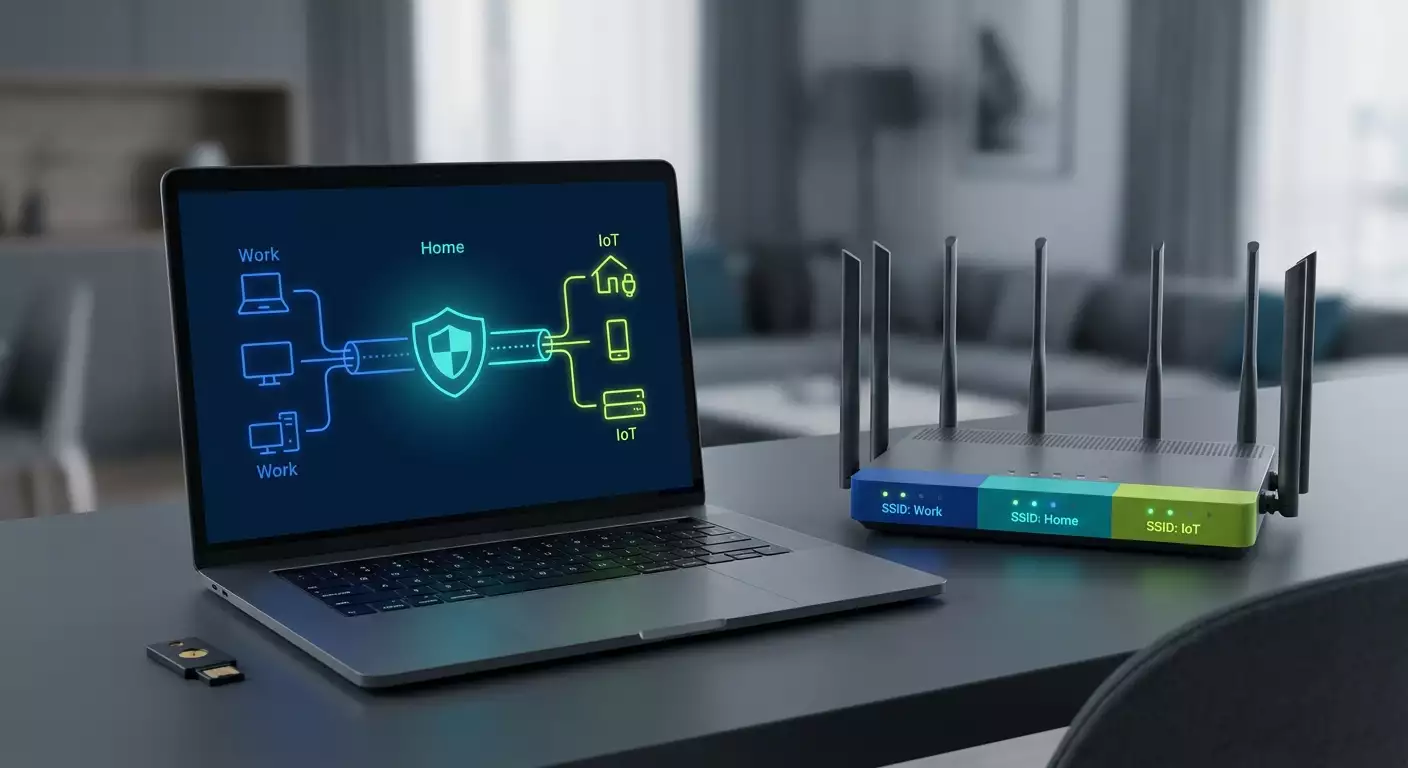
The most practical approach is not mixing. Personal laptops, streaming players, and consoles on one VLAN or profile. Work laptops and VoIP in another. Even on one router, you can create a separate «Work» SSID with its own VLAN and QoS rules. The work profile must have VPN on by default and strict DNS. The personal profile is free but filtered for phishing domains. Simple and effective.
Add fine routing—work domains go through corporate tunnel, personal traffic through your ISP. Set checkpoints: if VPN drops, work resources go offline. Discipline matters. No hole where browsers unintentionally use local DNS to leak internal domains outside. Sounds strict? Sure. But it spares explaining why Git worked without SSO or why logs are empty. Clear rules equal less chaos.
Network Segmentation: VLANs, Guest Networks, IoT
IoT devices are cute but unpredictable. They belong in a separate VLAN with no access to work or personal segments. Allow only internet and, if needed, multimedia protocols toward TVs. Guest Wi‑Fi is strictly isolated. Change its password monthly without hassle. Main home network uses WPA3-SAE, WPS off, long passphrase. Your neighbor shouldn’t be an internal threat—even if it’s «Uncle Vitya from the fifth floor».
Are ACL lists needed? Yes, minimal: which ports go where. Multimedia allowed; SSH from IoT—not allowed. Least privilege principle. Add monitoring—even home routers have basic telemetry. In 2026, open source firmware and popular firewalls are friendlier: VLANs, IDS/IPS, DoH/DoT, schedules, QoS, backups. Not only for geeks—also for parents who don’t want their kid’s tablet accidentally seeing the finance folder.
Router as the Control Hub: What It Should Do
Look for WPA3, VLAN support, guest networks, hardware VPN acceleration (like for WireGuard), DoH/DoT, and preferably 2.5G LAN ports. Many 2026 home routers handle 500–900 Mbps WireGuard hardware acceleration in mid-tier models. Steady updates and clear UI are critical. Nice graphs showing who uses what and when help too. QoS rules ensure your work calls don’t crackle when someone streams 4K next door.
It makes sense to separate your work network with a mini-gateway: a small single-board PC, managed switch, and access point with a dedicated SSID. Physical separation means if personal experiments break your home network, your work segment keeps running. Budget? Not astronomical. But peace of mind, especially on demo day when your ISP is acting up, is priceless.
Setting Up VPN for Remote Work
Company VPN Provider and Client Policies
Usually, your company provides VPN access. Our job is to connect correctly without breaking policy. Install a vetted client, enable auto-start, enforce MFA, bind to hardware keys. Double-check split-tunnel rules: which subnets, domains, and apps go through the tunnel. Make sure corporate DNS queries don’t leak via ISP. And, yes, enable a strict kill switch—no compromises.
It’s great when per-app VPN is available: mail, calendar, messenger, IDE through the tunnel, multimedia bypassed. It’s more comfortable. In 2026, MDM platforms handle per-app and even per-domain rules. Plus device posture checks: encrypted disk, antivirus, core updates, firewall on. Fail checks? No network access. Strict? Yes. But the best way not to become your own security victim.
Home VPN Server: When and Why
A home server makes sense if you want to access NAS, smart home, or personal services while traveling. Or if CGNAT frustrates you and you want secure external access. A mini-PC or decent single-board computer will do. Set up WireGuard, static routes, secure DNS. Use key-based auth and, if possible, domain fronting with TLS 1.3 to evade strict networks.
Basic hygiene: don’t expose admin panels publicly, close unnecessary ports, keep logs local, rotate configs. Many ISPs offer IPv6—use it. It simplifies direct access but watch firewall rules. And plan a backup: if your home link goes down, switch over via VPS tunnel. Nothing complex, just a prepared plan B.
WireGuard Configuration: A Practical Example
Basic recipe: generate keys, set Address, ListenPort, AllowedIPs for clients on the server, enable PersistentKeepalive to bypass NAT. On clients, configure DNS to protected resolver, AllowedIPs as corporate subnets or 0.0.0.0/0 for full tunnel. Set up PostUp/PostDown iptables or nftables rules to block leaks. Check MTU—usually 1280–1420 works best for stability.
Test in real conditions: video calls, IDE, repos, portals. Monitor DNS leak logs. Check latency. If things glitch, enable obfuscation or switch to port 443/UDP; under strict filtering, 443/TCP. QUIC is widespread in 2026, so UDP 443 fits naturally. Simple tips, big time savings. It’s always better to get it right once than explain CI hiccups four times.
Home Office Security Best Practices
Access Only via MFA and Hardware Keys
Passwords get cracked, phishing grows. MFA is the baseline. FIDO2 hardware keys are the gold standard. Pair SSO with keys, require PINs, set backup keys and offline codes—sleep easier. Don’t rely on SMS bypasses. By 2026, SMS is almost outdated for critical access. Use passkeys and conditional access when possible: trusted devices, verified networks, lower risk equals easier access.
A quick note on everyday details. Don’t share your work laptop with family. No torrents, cracked software, or shady extensions. Set screen lock to 1–2 minutes timeout. On trips, use privacy screen filters and minimal apps. Small things? Yes—but they’re often what breaks even the best setup. Without discipline, any VPN turns into a pretty poster.
Updates, EDR/XDR, DNS Filtering
Patching closes unseen holes. Enable OS and app auto-updates—problem solved. EDR/XDR monitors processes, behavior, and networks, catching suspicious activity. Don’t skimp on this. DNS filtering quickly blocks phishing and malicious sites. In 2026, DoH/DoT resolvers with blocklists are easy to set up—even on routers. Add your own rules: block trackers and suspicious domains to cut noise dramatically.
Don’t go overboard. Keep comfort by using soft categorization modes with whitelists—work domains white, suspicious grey. Notifications sent through convenient channels like messenger or email. We’re not building a home SOC, just aiming for quiet, reliable protection.
Backups, Disk Encryption, Secrets
Full-disk encryption is non-negotiable. Lost laptop? Your data stays safe. Follow the 3-2-1 backup rule: three copies on two media types, one offsite. In 2026, encrypted external SSDs and cloud with server-side encryption cost about as much as a nice dinner but save careers. Store secrets in password managers—not notes or chats. Boring, but effective.
If sharing access, create a team vault with audits. Revoke keys as soon as someone leaves a project. And please, don’t email recovery codes—that’s how half your services slip away. Harsh? Yes. True. Either you manage secrets or secrets manage you.
Protecting Home Devices and Wi‑Fi
Wi‑Fi 6E/7 and WPA3: Setup Tips
If your gear supports 6E or 7, use it. The 6 GHz band offers cleaner channels and less interference. Enable WPA3-SAE, turn off mixed modes that break compatibility. Hiding SSIDs doesn’t equal security; longer passphrases and WPS off do. Enable client isolation on guest networks. Name your networks clearly: “Home,” “Work,” “Guest,” “IoT.” Simple is key.
Placement matters. The closer your access point to the work spot, the more stable your video calls. Reduce power if signals overspill rooms, cutting neighbor’s interference. Use auto-channel selection, but lock channels if conflicts arise. Don’t chase the highest bandwidth—sometimes 40 MHz on 5 GHz is steadier than 80. Practice beats theory every time.
Kids, Guests, and IoT Profiles
Kids get profiles with content filters, time limits, and separate DNS. Guests are isolated with nothing extra. IoT only allowed internet, updates, plus local hub access if needed. Block any access to work devices entirely. This chops a whole risk category—no more smart bulbs sneaking into your corporate subnet. Just don’t.
Put mini-rules on the fridge. Seriously. Like: “Work devices in Work SSID. Guests use Guest. New devices start in IoT until checked.” Simple reminders cut down “I didn’t know” excuses. No drama. Home is a team effort. Fewer surprises mean calmer days.
Device Control: MDM, Policies, Profiles
Company laptops require MDM: Wi-Fi, VPN, certificates, encryption rules, blacklisted apps, minimum OS versions, screen lock checks. Not total control—just common sense. For personal devices, a lightweight MDM profile managing corporate apps with per-app VPN is feasible—privacy intact, security solid.
Remember mobiles too. Phones are your second screen for email, calendar, calls. Use corporate containers, biometrics, never save codes in photos. In 2026, apps support FIDO2 and passkeys—use them. Faster, more reliable, less SMS-dependent. No magic—just grown-up security.
VPN Performance and Stability
Speed: MTU, UDP, Router Acceleration
Speed means more than Mbps—it’s lag-free, smooth video calls. Check MTU. A small tweak and calls stop crackling. UDP-based protocols usually perform better in real networks. Turn on hardware acceleration if your router supports WireGuard. The difference between 150 and 600 Mbps shows during backups and updates.
Optimize ciphers for hardware. Old laptops might run ChaCha20 faster than AES-GCM without AES-NI; new ones the opposite. Test it. One evening of tuning pays off in months of comfort. And remember QoS: work calls and RDP/SSH get priority. Streaming can wait. Work can’t.
Reliability: Failover, Multi-WAN, IPv6
Internet drops happen. Fact. When work’s critical, a backup channel saves the day. A 4G/5G modem failover is common practice. Routers auto-switch, VPN reconnects, you barely notice. For high availability companies, channel aggregation or active-passive setups are practical—not necessarily expensive.
IPv6 is more stable in 2026. Enable it in tunnels, check firewalls, disable unnecessary SLAAC listeners if unused. Proper IPv6 setup brings predictability, removes NAT hacks, and cuts weird delays. Key: keep it clean. Separate IPv4 from IPv6 networks and routes for clarity.
Traffic and Limits: Saving and Monitoring
With limited internet, avoid creeping updates during work hours. Scheduling matters—updates at night, backups locally, only diffs over the internet. Router monitoring reveals bandwidth hogs—maybe not Zoom but a 4K security camera or cloud photo sync suddenly waking up with 200 GB.
Set simple alerts: VPN drops, traffic spikes, new device connections. Even basic notifications save hours of troubleshooting. And best monitoring is quiet monitoring. Thresholds trigger alerts, silence when all’s good, quick tips on failure. Without it, systems are blind and only seem reliable.
Use Cases and Mini Cases
Freelancer with Confidential Projects
Anna’s a designer working on NDA projects. Her home router has two SSIDs: “Work” and “Home.” Work laptop connects to “Work” with per-app VPN for mail, Figma, cloud storage. DNS filtering blocks phishing sites. Backups go to encrypted SSD and versioned cloud. Result? No surprises—even if her personal tablet gets infected, work data stays safe. Simple, elegant, professional.
Anna tried no separation once. One night torrents drained bandwidth—deadlines went down the drain. Now QoS holds priority, VPN’s always on for work. A few evenings of setup, and now fewer calendar headaches, peace of mind, and client praise for stability.
Family with Kids and IoT Madness
The Petrov family has a smart home, game consoles, TVs, cameras, tablets. Three networks: “Home,” “Guest,” “IoT.” Cameras and bulbs in “IoT,” guests in “Guest,” all isolated. Parents work remotely on “Work” with VPN and QoS priority. Video calls stay strong, kids play uninterrupted, bulbs can’t see corporate mailboxes. Segmentation isn’t a luxury—it tamps down daily chaos.
Once a camera suddenly started sending traffic to a strange subnet. Alerts triggered, isolated in clicks. Over dinner: discussed, disabled extra features, updated firmware. Done. No drama, no panic. When your architecture’s right, even weird glitches become easy maintenance.
Small Business: 10 Remote Employees
A 10-person startup stayed distributed. Cloud VPN gateway, per-app policies, mandatory FIDO2, device posture checks. Employees’ home networks segmented: work laptops in separate profiles, sometimes separate access points. Git, CRM, storage only via tunnel. Messenger with SSO and labels. Backup ISP for CEO and DevOps.
After three months, incident metrics dropped close to zero. Quarterly plan B drills: main VPN off, switch to backup node. Feedback? “Like nothing happened.” That’s maturity—not heroics under fire, but steady, routine resilience.
Compliance and Legal Aspects
Company Policies and Digital Hygiene
Even at home, you’re part of the corporate perimeter. Device use, data storage, backups—not just tick-boxes. Agree on standards: disk encryption, MFA, 14-day updates, EDR on all work devices, no shared accounts. Clarify what’s allowed on personal devices. Unsure? Ask your security officer or helpdesk. A question costs less than an incident.
Biannual micro-training helps: phishing, safe extensions, browser privacy, fraud scenarios. Not boring—it’s evolving threats. We service our bikes regularly, so why not our skills? Ten minutes quarterly means far fewer chances of hitting “that” malicious link.
Logs and Privacy: Where Are the Boundaries?
The balance is simple: the company sees only what it needs for security and audit. Personal traffic stays private when not routed via corporate tunnel. Transparency matters—what’s logged, where logs live, retention periods, who accesses them. For full-tunnel use, study privacy policies and personal site exceptions. Mature teams discuss this openly—no shady control.
If you’re under NDA, consider contractual obligations: storage on specific servers, banning public clouds, encryption demands. Sometimes better to keep data in corporate vaults rather than personal drives. Simple rule: when doubtful, ask. Human dialogue often beats the smartest policy.
Taxes, GDPR, and Cross-Border Access
Working with EU clients? GDPR applies. Minimize personal data collection, encrypt on disk and in transit, manage retention and deletion rights. For cross-border projects, note where data and backups physically reside. Bureaucracy? Maybe. But fines and reputation hits are way costlier.
Taxes and self-employed or sole-proprietor status affect document storage and correspondence archives. Separate personal and work not just technically but legally. Keep neat records, contracts, and invoices in encrypted containers. Then audits are predictable, not nightmares.
30-Day Implementation Plan
Days 1–7: Quick Wins
Week one—tidy up. Update router firmware, enable WPA3, swap passwords for long phrases. Create SSIDs: Work, Home, Guest, IoT. Assign devices accordingly. Install corporate VPN client, enable auto-start and kill switch. Add FIDO2 hardware keys, configure backup codes. Install password manager and transfer credentials. No heroics, just a checklist.
End of week: measure speed and stability—calls, video meetings, access to work resources. Troubleshoot MTU and QoS if lagging. Turn on basic router monitoring: who connects where. A few simple graphs reveal nighttime usage and slowdowns. Order appears visibly.
Days 8–21: Architecture and Automation
Weeks two and three—strengthen the foundation. Add DNS filtering, set whitelists for work. Separate policies: per-app VPN, split-tunnel routes, internal subnet routing. Set up backup connections: USB modem or second ISP for critical tasks. Enable event monitoring: VPN drops, new devices, traffic spikes. Quiet and transparent.
Automate backups: local NAS plus cloud with encryption and schedules. Test restores—not just checkboxes. Add EDR and device posture checks. Agree on regular drills: monthly backup route tests, quarterly phishing simulations. It’s not a game—it’s readiness.
Days 22–30: Testing, Training, Plan B
Final week—verify readiness. Turn off main channel, watch VPN switch. Disable one access point, confirm work SSID hits backup. Review logs and alerts. Update checklists. Hold a short workshop with your family—five minutes to clarity on connections and protocols during failures.
Assess weak spots. Maybe buy extra keys, reposition access points, tighten policies for apps. No drama. Like a pre-trip car check—little attention now saves smooth journeys later. Keep plan B handy and refresh it regularly. Better ready than “we hoped so.”
Conclusion: Key Takeaways
Fridge Checklist
Segment networks: Work, Home, Guest, IoT. Use WPA3, disable WPS. Work devices only through VPN with kill switch. DNS filtering and EDR are essentials. Backups follow 3-2-1. MFA with hardware keys. Review policies biannually. And don’t mix work and personal—that’s the root of chaos. The rest is just tech, set once and maintained with minimal effort.
VPN isn’t a silver bullet but a great exoskeleton for your home office. It handles encryption, routing, control, letting you work calmly. We’re not chasing paranoia but resilience built from a dozen simple steps, not magic. By 2026, that’s standard, not innovation.
Moving Forward Without Panic
Start small: two SSIDs, VPN by default, password manager. Then automate backups, add EDR and DNS filtering. Later, set a backup connection and train your family. Don’t try everything overnight but don’t postpone past the holidays either. Every day without basic protection is an open invitation to hackers. It’s not worth it.
Lastly, ask questions and discuss this with colleagues, security teams, and your provider. Good security is a team effort—not a checkbox but a foundation for calm, predictable work and personal freedom. And yes, VPN is an excellent place to start.
FAQ
Category 1: Basics
Do I Need a VPN if I Only Work from Home and Never Travel?
Yes. Home networks are full of surprises: IoT devices, kids’ apps, browser extensions, strange DNS behaviors. A VPN creates a managed, encrypted channel to corporate resources, separates traffic, and eliminates grey areas where local ISPs or neighbor routers meddle with routing. Even without public Wi‑Fi, the tunnel keeps your access disciplined and cuts leak risks dramatically. Like seat belts—it seems extra until you need it.
How is VPN Different from a Proxy and Why So Many Protocols?
Proxies work at the app level; VPNs create encrypted network-level tunnels. VPN protects all apps, not just browsers. Different protocols serve different needs. WireGuard is fast and simple; IKEv2 stable when switching networks; OpenVPN flexible for compatibility and TCP bypass; QUIC improves start times and NAT resilience. In 2026, mixed protocol stacks are common—and that’s a plus.
Category 2: Practice
Full-Tunnel or Split-Tunnel: What’s Best for Home?
If security tops your list, go full-tunnel on work devices: all traffic via VPN, fewer leaks. For personal devices or weak links, split-tunnel works fine: work subnets go through VPN, the rest direct. The key is strict DNS and kill switch settings. A combined strategy is ideal: full-tunnel for work, split-tunnel with per-app VPN for personal. Flexibility without compromise.
How Do I Know If My VPN Is Set Up Right?
Simple checklist: 1) VPN auto-starts. 2) When internet drops, work resources become unreachable. 3) Corporate DNS resolves only via secure resolvers. 4) Video calls are stable, lag rare. 5) Logs show no routing leaks. 6) MFA and hardware keys are enabled. If all checks out, you’re close to best practice. Next: monitoring and regular quick audits.
Category 3: Policies and Privacy
Does My Company See My Personal Traffic Over VPN?
If you use split-tunnel and separate networks, personal traffic goes directly and won’t appear in corporate logs. With full-tunnel, all traffic goes through corporate servers, and company policies decide what’s logged. Mature organizations have clear privacy docs governing storage, retention, and access. Better clarify details upfront and, if needed, use a separate personal device outside the corporate tunnel.
What If VPN Slows Me Down or Ruins Calls?
Check MTU, switch to UDP 443, enable QoS for voice/video. If your router supports hardware acceleration, use WireGuard with proper cipher combos. Temporarily lift strict filters during calls. Check if Netflix or updates hog bandwidth. Minor tweaks can make a huge difference. Sometimes a backup 5G modem for critical meetings isn’t a luxury but essential insurance.